Animating 3d models in DarkGDK using dbAppendObject

Been watching 3d Animation tutorials lately but I’ve never really found a tutorial or detailed example for that matter that actually teaches how to animate 3d models in DarkGDK in a less unclear way. And so I’m sharing this example in hope that it will be used by some computer enthusiast out there like myself as a starting point in creating their very own 3d computer game.

I have used the Babe model in this example. Babe model is a Dark Matter Model that is accesible by default when you install DarkGDK and is located at C:\Program Files\The Game Creators\Dark GDK\Media\Dark Matter Models\People. The controls and actions of our model in this example are illustrated in the following table.

ControlsActions
W,A,S,DMove.x
TabDie.x
QImpact.x
No key PressedIdle.x


Enough said, here’s the code:


// Dark GDK - The Game Creators - www.thegamecreators.com
// the wizard has created a very simple project that uses Dark GDK
// it contains the basic code for a GDK application
// whenever using Dark GDK you must ensure you include the header file
#include "DarkGDK.h"
// the main entry point for the application is this function
void DarkGDK ( void )
{
// turn on sync rate and set maximum rate to 30 fps
 dbSyncOn();
 dbSyncRate(30);

 //loads our 3d model
 //we'll be borrowing the Babe DirectX Darkmatter model
 //it's included in the DarkGdk package located in
 //C:\Program Files\The Game Creators\Dark GDK\Media\Dark Matter Models\People\Babe
 //Just copy the contents of the Babe folder to your game project folder
 dbLoadObject("H-Babe-Idle.x",2);
 //Idle.x has 25 frames
 //to find how how many frames there is in a .x animation
 //Click Start>All Programs>The Game Creators>DarkGDK>Documentation>Information>Type "Frame" 
 //in the Textbox and the command used to determine the number of frames will reveal itself to you.
 //appends the number of frames of the Move.x animation to the loaded model
 //Move.x has 25 frames
 dbAppendObject("H-Babe-Move.x",2,26);
 //Attack.x has 24 frames
 //adds the number of frames of Attack.x to the loaded model
 dbAppendObject("H-Babe-Attack1.x",2,51);
 //Die.x has 50 frames
 //adds the number of frames of Die.x to the loaded model
 dbAppendObject("H-Babe-Die.x",2,76);
 //Impact.x has 10 frames
 //adds the number of frames of Impact.x to the loaded model
 dbAppendObject("H-Babe-Impact.x",2,126);
 //positions the object in the -y axis cause its a little bit top aligned by default when loaded
 dbPositionObject(2,0,-1,0);


 while (LoopGDK())
 {
 //display descriptive text
 dbSetTextSize(14);
 dbText(10,0,"WASD-Movement");
 dbText(10,10,"Spacebar-Attack.x");
 dbText(10,20,"Tab-Die.x");
 dbText(10,30,"Q-Impact.x");
 dbText(10,40,"No key pressed-Idle.x");


   //if the W or A or S or D or Spacebar or Tab or Q is pressed
   if ( dbKeyState(17) || dbKeyState(31) ||dbKeyState(32) || dbKeyState(30)||dbKeyState(57) || dbKeyState(15)|| dbKeyState(16))
   {
   //stop the presently looping animation
  dbStopObject(2);
   //retrieves the object present angle
   int ObjAngleY=dbObjectAngleY(2);
   //determines if the object is presently looping
   int looping=dbObjectLooping(2);
      //if the key pressed is W
   if(dbKeyState(17)) 
   { 
   //move the object on the -Z axis
     dbMoveObject(2,-0.05f);
   //is the object presently not playing?
   if (looping==0 )
   {
   //if yes then execute move.x
      //move Move.x has 25 frames
   //the number of frames from the starting frame to the ending frame must be at least 25 frames

    dbLoopObject ( 2,26, 51 );
   };
   }
   //if the key pressed is S
   if (dbKeyState(31))
   {
   //move the object on the Z axis
    dbMoveObject(2,0.05f);
   //is the object currently not playing?
   if (looping==0 )
   {
      //if yes then execute move.x
      //move directx animation has 25 frames
   //starting frame up to the end frame must be at least 25 frames

    dbLoopObject ( 2,26, 51 );

   };
   }
   //if the A key is pressed

   if (dbKeyState(30))
   {
  //rotate the object along the Y axis
  //for instance, if the objects current angle is 275-5
  //The object will then be rotated 270 degrees which is exactly south
  //from the user's POV
  //the dbWrapValue is to ensure that the object rotation will not exceed 360 degrees

    dbYRotateObject(2,dbWrapValue(ObjAngleY-5.0f));
   }

  //if the D key is pressed
   if (dbKeyState(32))
   {
 
     //rotate the object along the Y axis
  //for instance, if the objects current angle is 85+5
  //The object will then be rotated 90 degrees which is exactly north
  //from the user's POV
  //the dbWrapValue is to ensure that the object rotation will not exceed 360 degrees
    dbYRotateObject(2,dbWrapValue(ObjAngleY+5.0f));
   }
     //if the space key is pressed
   if(dbKeyState(57))
   {
  //is the object currently not playing?
   if (looping==0 )
   {
   //if yes then execute Attack.x
   //Attack.x has 24 frames so from the starting to ending frames
   //must be at least 24 frames
    dbLoopObject ( 2,51,77 );


   };
   }
   //if the Tab key is pressed
   if(dbKeyState(15))
   {
   //is the object currently not playing?
   if (looping==0 )
   {
   //if yes then execute Die.x
   //Die.x has 50 frames so from the starting to ending frames
   //must be at least 50 frames
    dbLoopObject ( 2,78,127 );


   };
   }
       //if the Q key is pressed
  
   if(dbKeyState(16))
   {
  //is the object currently not playing?
   if (looping==0 )
   {
  //if yes then execute Impact.x
     //Impact.x has 10 frames so from the starting to ending frames
     //must be at least 10 frames
    dbLoopObject ( 2,127,137 );


   };
   }


   }
  else
  //if no key is pressed
  //execute Idle.x
  //Idle.x has 25 frames so from the starting to the ending frames miust be at least 25 frames
  {
   dbLoopObject(2,1,25);
  }
// update the screen
  dbSync();
 } 
//return to windows
return;
}


Another way of animating models is by using the dbShowObject and dbHideObject commands. I'll post an example of that here when I have time. If you want more information on animating darkGDK models or creating games per se, you can visit DarkGDK's official site www.thegamecreators.com

Terminate an Executable Application in Visual Foxpro 9.0 at Run-time by Force

To terminate an executable application in Visual FoxPro 9.0 at run-time, use the RUN and Taskkill command. RUN is a Visual FoxPro command that allows you to execute DOS commands, Taskkill, on the other hand, is DOS command that allows you to terminate an exe applications and processes , similar to using the task manager. For details on using the taskkill command, follow these steps:

1. Click Start>Run>Type CMD> then press enter.

2. In the command prompt, type TASKKILL/?.

Using Run and Taskkill to terminate an executable application at run-time is essential especially if you have hidden the Visual FoxPro 9 IDE using the _SCREEN.VISIBLE command and your form just freezes when you click the Exit button, even though you have attached a THISFORM.RELEASE or whatever code to it. To see RUN and TASKKILL in action, follow these steps:


1. Click Start>All Programs>Microsoft Visual FoxPro 9.0.

2. Close the Task Pane Manager window.


3. Let’s make a form by typing CREA FORM in the command window and pressing enter.

Note: If the command window is hidden, just press CTRL + F2 to show it.

4. Add two buttons to your form, Refer to the following screenshot for control names and values:


5. Double-click the Terminate Ms-Word button, enter the following codes:

private anyvariable
anyvariable=MESSAGEBOX(“Are you sure you want to terminate Ms-Word?”,4+32)
if anyvariable=6
RUN "Taskkill /f /im winword.exe”
ENDIF


Your code window should now look like this:


6. Double-click the Terminate Visual FoxPro button, enter the following codes:
private anyvariable
anyvariable=MESSAGEBOX(“Are you sure you want to terminate Ms-Word?”,4+32)
if anyvariable=6
RUN "Taskkill /f /im VFP9.exe”
ENDIF
Your code window should now look like this:


7. Press CTRL + F3 to test your application.

8. Before Clicking the Terminate Ms-Word button, ensure that Ms-word is activated.

9. Try clicking the Terminate Visual FoxPro button and see what happens. And that’s all :)

Retrieve values from another form in Visual FoxPro 9.0

One of the ways to retrieve values from another form in Visual Foxpro is to use a Form Set. A Form Set (from the name itself) is a set or collection of forms. To create a Form Set, follow these steps:

1. Click Start>All Programs>Visual FoxPro 9.0.
2. Close the Task Pane Manager Window.
3. To create a form, type CREA FORM in the command window, and then press enter.


Note: If the Command Window is not shown, Press CTRL + F2.
4. A new form will now come into view.


5. To create a form set, click Form>Create Form Set.


Although nothing appear to happen when you click the Create Form Set Submenu but essentially a new submenu will be enabled, the Add New Form submenu.

6. To add a form to your Form Set, Click Form>Add New Form.


A new form named form2 will now be added to your Form Set. If you add another form, that form will be named form3 and so on. Repeat the step no. 6 to add one more form to your form set. Our form set will now have 3 forms named form1, form2, and form3.


7. For the sake of example, let’s make an application that will allow us to enter our first name in the first form, last name in the second form, and display our first name and last name in the last form. We also want to display just the main form when our application is first executed and hide the unneeded forms.

8. If we click the Run icon or press control + E now. you’ll noticed that all forms are displayed at once.


8. Click all the close button of all the opened form to go back to the design view. To hide Form2 and Form3 when the application is first executed, double Click Form1, in the Init procedure, enter the following:
*hides the second form
Thisformset.Form2.Hide ()
*hides the third form
Thisformset.Form3.Hide ()


The code window will now look like this:


9. While still in the code window of Form1, Select the Unload event.

Enter the following code:

*Closes all the forms in the formset
 RELEASE Thisformset


The code window will now look like this:


10. Click the close button of the code window to save all codes that we have entered so far in form1.

11. Add a Label, a textbox and a button to form1, refer to the following screenshot for control property values:


12. What we aim to do here is if click the next button, form1 will be hidden and form2 will appear. To be able to do that, double click the Next button in form1 and enter the following codes:

*Hides form1
Thisformset.Form1.Hide()
*Show form2
Thisformset.Form2.Show()

The code window will now look like this:


Click the close button of the code window to save the codes that we have entered in Command1.

13. Add a Label, a textbox and two buttons to form2, refer to the following screenshot for control property values:


14. What we intend to do here is if we click the Prev Button, Form2 will be hidden and Form1 will be shown. If we click the Next Form3 will be shown and Form2 will be hidden.

15. Double click the Prev button then enter the following codes:
*Shows form1
Thisformset.form1.Show()
*Hides form2
Thisformset.form2.Hide()

Your code window will now look like this:


Click the close of the code window to save your codes

16. Double click the next button in form2 then enter the following codes:
*Hides form2
Thisformset.form2.Hide()
*Shows form3
Thisformset.form3.Show()

Your code window will now look like this:


Click the close of the code window to save your codes

17. Add four labels to form3. Refer to the following screenshot for control property values:


18. What we intend to do here is if Form3 is loaded, all the values from the previous will be displayed on their respective controls. Double-click form3. Select the Activate procedure then enter the following codes:
*retrieves the value of the textbox in form1 and
*display it in the our label in form3
Thisformset.Form3.Label2.Caption=Thisformset.Form1.text1.value
*retrieves the value of the textbox in form2 and
*display it in our label in form3
Thisformset.Form3.Label4.Caption=Thisformset.Form2.text1.value

Your code window will now look like this:


19. Click the close button of the code window to save your codes. Let’s take a look to all our forms once more time.


20. Click the run icon or press Ctrl + E to test your Form Set.

21. Try entering your first name on form1>Next. Your Last name on Form2>Next. Your first name and last name should now appear on form3.

Symet BEAM Robot

Time for some break in programming and delve into the exciting world of robotics. Symet, FYI , is an intelligent agent that can sense it’s environment through the solar cell and perform an action (e.i. tweaks or rotates) the moment it senses heat. A perfect example of a simple AI robot. Here is a mobile video taken by Christine (one of my apprentice LOL) showing Symet at work. This was edited using PowerDirector( A rich-featured video editing software by Cyberlink) which is available for download at www.cyberlink.com. The title and PIP Templates were downloaded from directorzone.cyberlink.com. The Kinetic Typography was made using Microsoft PowerPoint.


Linking to an Ms-Access Data Source using Visual C++ 2008 Windows Forms Application

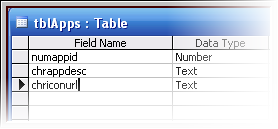
1.Create an Ms-Access database file using the following fields and data types:


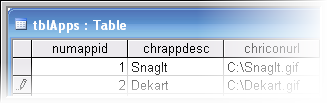
2. Name your table as “tblApps” no quotes. Add appropriate record values for instance:


3. Name your Access database file as “dbICons” no quotes and save it in My documents. Make sure to close Ms-Access before you start Visual C++ 2008, otherwise you’ll get an “Already in use” error in the database connection part.

4. Click Start>All Programs>Microsoft C++ 2008 Express Edition.

5. Click File>New>Project>Select CLR from the Visual C++ Project Types tree view>Select Windows Forms Application from the Visual Studio installed templates pane>Enter your desired project name then click Ok.

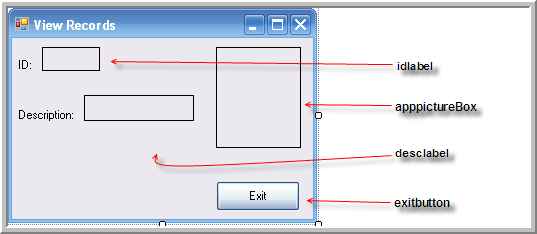
6. Design your form as follows:


7. Just use the suggested control names above so that you will not get lost later on in this tutorial. To name a control, just select the control and change its name property value in the properties window.

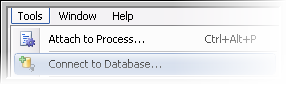
8. At this moment we will now specify the name of our database that we wanted to connect to. To do that, click the Tools menu and select Connect to database:


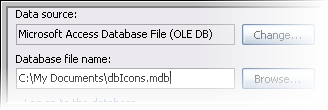
9. Select Microsoft Access Database File (OLE DB) as a data source value then locate dbIcons and assign it as a Database filename value.


10. Click the oledbDataAdapter control from the general category of the toolbox and drag it to your form. There instances wherein the oledbdataadapter is not shown, to show it, click Tools>Choose Toolbox items>type “ole” not quotes in the filter textbox> then check everything that starts with “ole” then click the Ok button.

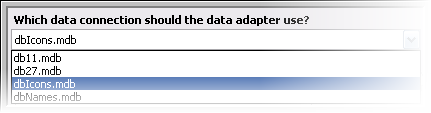
11. Once you have added an oledataadapter control, the data adapter configuration wizard will then come into view. If you noticed the table that you have connected previously (using step 8-9) is selected as a default value of the “what data connection should the data adapter use?” listbox. If not then click the listbox button then select “dbIcons” then click the Next button.


12. In the Choose a command type window, select the Use SQL statement radio button then click Next.

13. In the Generate SQL statement window, type “SELECT * FROM tblApps” no quotes in the blank pane then click Next>Finish.

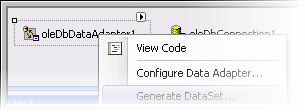
14. Right-click>OleDbDataAdapter form the component tab>generate dataset>Ok.


15. Double-click your form then add the following in the Form_load event.
//Populates the dataset
this->oleDbDataAdapter1->Fill(this->dataSet11,"tblApps");
16. This will fill our dataset with record values from our database.

17. Bind the fieldname to an appropriate control using the following syntax:

this->objectname->databindings->add(gcnew Binding(“Property”, datasetname,”Tablename.fieldname”);

Add it below the oledbdataadapter.fill line. Your code should now look like this:

private: System::Void Form1_Load(System::Object^  sender, System::EventArgs^  e) {
//Populates the dataset
this->oleDbDataAdapter1->Fill(this->dataSet11,"tblApps");
//bind idlabel to the numappid fieldname
this->idlabel->DataBindings->Add(gcnew Binding("Text",this->dataSet11,"tblApps.numappid"));
//bind desclabel to the chrappdesc fieldname
this->desclabel->DataBindings->Add(gcnew Binding("Text",this->dataSet11,"tblApps.chrappdesc"));
//bind appPictureBox to the chriconurl fieldname
this->apppictureBox->DataBindings->Add(gcnew Binding("ImageLocation",this->dataSet11,"tblApps.chriconurl"));
}

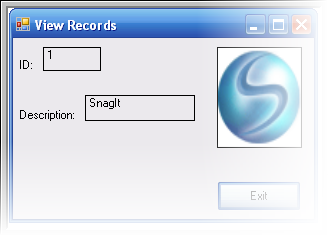
18. Click the run icon to start debugging, you should see the following outputs:

A simple “Hello World” program in BlueJ

1. Click Start>All Programs>BlueJ>BlueJ.
The BlueJ Environment will then come into view.

2. Click the Project menu>New project. In the Look in Listbox, select My documents> Enter “Example” (no quotes) in the Folder Name textbox then click Create.

3. Click the New Class button>Type “Hello” (no quotes) in the Class Name textbox> Ensure that Class is selected in the class type radio buttons then click OK.


A class icon with a caption “Hello” will then appear in the BlueJ workarea.


4.Double click the Hello class icon, the following source code window will then appear:


Before creating our “Hello World” program, let us first dissect the pre-made code bit by bit. If you noticed, I’ve enabled line numbers by clicking Options>Preferences>Display line numbers, for discussion purposes.

Line 8: Is the class declaration section. It simply tells the BlueJ compiler the name of our class and to create class file based on it.
Line 9: Indicates the beginning of our class.
Line 10-12: Is the instance variable declaration section. This is where we declare the variables that will be needed in our application.
Line 16-20: Is the variable initialization section. This is where we initialize the values of our variables.
Line 28-32: Is the method declaration section. This is where we specify the actions that our application is capable of performing.
Line 34: Simply specifies the end of our class.

5. Now that we’ve understood (somehow) Blue’s code structure, let us now make our hello world program. Go to the instance variable declaration section (Line 10-12) and change “private int x;” to “private String strtext;” no quotes. The reason why we are declaring a string variable instead of the default integer variable is because we will be storing text i.e. “Hello World” to this variable in the variable initialization section.


6. Go to the variable initialization section (Line 16 to 20) and assign a “Hello World” value to our previously declared variable. This can be done by erasing ‘x=0;’ and changing it to ‘strtext=”Hello World”;’.


7. Go to the method declaration section (Line 28-32). Since we will not be accepting a numeric value from other methods nor we will be passing numeric value, change :


To


8. Your code will now look like this:

/**
* Write a description of class Hello here.
* 
* @author (your name) 
* @version (a version number or a date)
*/
public class Hello
{
// instance variables - replace the example below with your own
private String strtext;

/**
* Constructor for objects of class Hello
*/
public Hello()
{
// initialise instance variables
strtext="Hello World";
}

/**
* An example of a method - replace this comment with your own
* 
* @param  y   a sample parameter for a method
* @return     the sum of x and y 
*/
public void sampleMethod()
{
//clears the previous outputs
System.out.println("\u000c");
//retrieves the value of the strtext variable and display it on the screen.
System.out.println(strtext);
}
}
9. Click the compile button to convert your Bluej source code into bytecode.

10. Click the Close Button.

11. Create an Object based on your Hello class by right-clicking the Hello class icon>new Hello.


12. Right-click the name of the Hello object>Click your method i.e., sampleMethod.


13. You should now see an output similar to the following: