Simple GUI Calculator in Java

Hello world! I'm back. It’s been four years since my last post. I’d been very busy with work in these past few years that I haven’t had time to blog. I missed blogging somehow and this year I figure I’ll get back to blogging again.

We are going to be making simple programming projects starting from now and for our first project, let’s make a simplest calculator using Java. In this project we’ll be using BlueJ as our Java Development Tool.

1. Download BlueJ installer from https://www.bluej.org/ then install it.

2. Click Start>Click BlueJ.

3. Click Project>New Project>For the sake of example, let’s use Java as a project name.


4. Click New Class>Select Class in the class type radio buttons then enter Calc in the Class Name textbox.


5. Double-click the Calc object.


6. A Window containing default BlueJ source code will then appear. Press Ctrl + A to select all the codes, then Press Delete.


7. Enter the following code:

//imports the necessary packages.
//swing for frame, awt for controls, and event for button events
import javax.swing.*;
import java.awt.*;
import java.awt.event.*;
//creates a class named Calc and prepares it to accept an event
public class Calc extends JFrame implements ActionListener
{
//creates our controls
  JTextField ansTextField=new JTextField("",18);
  JButton oneButton=new JButton("1");
  JButton twoButton=new JButton("2");
  JButton plusButton=new JButton("+");
  JButton minusButton=new JButton("-");
  JButton equalsButton=new JButton("=");
 //declares three variables
  int intNum1,intNum2;
  String strOperator;
    public Calc()
{
   //creates two panels
   JPanel topPanel=new JPanel();
   JPanel bottomPanel=new JPanel();
   //create two layouts
   BorderLayout border=new BorderLayout(5,5);
   FlowLayout flow=new FlowLayout(FlowLayout.RIGHT,10,10);
   //apply the borderLayout to frame
   setLayout(border);
   //prepare our buttons to accept an event
   oneButton.addActionListener(this);
   twoButton.addActionListener(this);
   plusButton.addActionListener(this);
   minusButton.addActionListener(this);
   equalsButton.addActionListener(this);
   //adds the textbox to the top panel
   topPanel.add(ansTextField);
   //applies flow layout to bottom panel
   bottomPanel.setLayout(flow);
   //add the buttons to the bottom panel
   bottomPanel.add(oneButton);
   bottomPanel.add(twoButton);
   bottomPanel.add(plusButton);
   bottomPanel.add(minusButton);
   bottomPanel.add(equalsButton);
   add(topPanel,BorderLayout.NORTH);
   add(bottomPanel);
   //setup our frame
   setSize(200,200);
   setLocation(0,0);
   setDefaultCloseOperation(JFrame.EXIT_ON_CLOSE);
   setTitle("Calculator");
   setVisible(true);
 
}
public void actionPerformed(ActionEvent e)
{
    //getSource determines the name of the control that recieves an event
    Object source=e.getSource();
    //if the name of the control that recieves an event is oneButton, display 1 in the textfield
    if(source==oneButton)
    {
        ansTextField.setText(ansTextField.getText() + oneButton.getText());
    }
    //if the name of the control is twoButton, display 2 in the textfield
    //you can add else ifs for numbers 3 to 9. I just leave that to you to figure out
    else if(source==twoButton)
    {
         ansTextField.setText(ansTextField.getText() + twoButton.getText());
     
    }
    //if it is plusButton, get the value displayed in the textfield and place it
    //in a variable named intNum1
    //Store "+" in the strOperator variable then clear the text field
    else if(source==plusButton)
    {
        intNum1=Integer.parseInt(ansTextField.getText());
        strOperator="+";
        ansTextField.setText("");
        
    }
   //if it is minusButton, get the value displayed in the textfield and place it
   //in a variable named intNum1
   //store "-" in the strOperator variable then clear the text field
   else if(source==minusButton)
    {
        intNum1=Integer.parseInt(ansTextField.getText());
        strOperator="-";
        ansTextField.setText("");
        
    }
    //if the name of the control that recieves an event is equals button
    //get the current value of the text field and assign it as a value of intNum2
    //if the current value of strOperator is + add the two numbers, if it's value is -
    //subtract the two numbers
    else if(source==equalsButton)
    {
        intNum2=Integer.parseInt(ansTextField.getText());
        if(strOperator=="+")
        {
          ansTextField.setText(Integer.toString(intNum1 + intNum2)); 
        }
          if(strOperator=="-")
        {
          ansTextField.setText(Integer.toString(intNum1 - intNum2)); 
        }
        
    }
}
//Creates an instance of our class so that we can run it
public static void main(String[] args)
{
  Calc c=new Calc();  
}
}


8. Click the compile button.

9. Close the code window.

10. Right-click the class object>Select void main(String[] args) to run your application.


11. You should then see the following output:


You can use this and make a complete basic calculator. Of course I leave that to you to figure out. If you are having a hard time, you can download the source code here Good luck!

Enabling Broadband Internet Connection on Kali Linux

Hey there. Am sure you probably know that Kali Linux is a very powerful pen testing and computer forensics tool available for free download at http://www.kali.org/. But you might not know how to enable broadband Internet connections in it. Trust me, I had the same problems before as well. I’ve search the net to no avail so I decided to do something about it. Anyways, here’s how:
1. Insert your broadband stick on your USB port. In this case I’m using Smart Bro so its icon should then appear on the Kali Linux desktop.

2.In the top right side area of the kali desktop, Right-click the networking icon then select Edit Connections.

3. The Network Connections window should then appear.Select the mobile broadband tab then click Add.

4.On the next window select you provider’s country or region. In this case since iv’e selected Philippines[since Smart Bro is in the Philippines...depends on your service provider’s location]>Continue.

5. 5. Select your Mobile Broadband Provider. In this case ive’d selected Smart [since Smart Bro’s provider is Smart...again the value in here depends on your provider]>Continue.

6.Select your data provider plan. In this case I’ve accepted the default settings>Continue.

7. Click the Apply button to confirm your settings.
8. A connection name window should then appear. In this case, ived entered “Smart Bro” as a connection name. Any name should do. Just wanted it to be descriptive>Apply.

9. To enable your broadband internet connection, CLICK(not right-click) the networking icon near in the notifications area>Then select your broadband connection name. In this case Iv’e selected Smart Bro.

The network icon should now change into a broadband signal meter icon and you should not be able to connect to internet using a broadband connection.

Enjoy xD

BEAM Walking Robots

Hey all, I’l be writing some programming guide as soon as I can but for the moment, just wanna share these awesome walking robots made by my former students.

This one is a coat hanger walker based on the book “Absolute Beginners Guide in Building Robot’s” by Gareth Branwyn.


And here's another very simple BEAM walking robot made from old toy gears. Enjoy :D

BEAM Solar Rollers

BEAM Solar Rollers are solar-powered wheelers that move in short distances. Here are some of the solar rollers made by my students. This is based on Mark Tilden’s “Junk Bots, Bug bots, and Bots on Wheels: Building Simple Robots with BEAM Technology”. Apart from being simple intelligent agents, they are actually very cool items to give as gifts.

Connecting BlueJ GUI Application to a MySQL Workbench Database File

Hello friends! Am sure all of you newbie BlueJ user out there has probably been wondrin, “How the heck would I display my MySQL Workbench records in a BlueJ GUI application?”. Well, wonder no more because today we'll learn how to do it comprehensively.

Before we proceed to the actual step, I presume that you have a basic knowledge of developing GUI applications in BlueJ, JDBC API, and MySQL workbench. Let's proceed to the steps now shall way? I mean shall we?

1. Start MySQL workbench by clicking on Start>All Programs> MySQL>MySQL Workbench.

2. In the SQL Development pane, Double click Local instance MySql.


3. Click the “new sql tab for executing query” icon.


4. Enter the following MySQL script:


5. Click the “run everything” icon to execute the MySQL script.


What we have done so far is we've created a database file named dbNames and a user to that database named dbusername. We've also use dbpassword as our password. Additionally, we have a created a table named tblNames inside our dbNames database and added two records to it. What we are going to do next is we will create our Blue GUI application and then later on, we'll connect it to our database file.

6. Start BlueJ now by clicking on>BlueJ>BlueJ.

7. Click Project>New Project> Enter your desired project name>Create.

8. Click the New Class button>Enter “UseJDBC” as a class name no quotes. Use class as a class type then click OK.


9. Double-click the UseDBC class.


10. Press Control + A> then press Delete to delete all BlueJ's pre-written code, then enter the following codes:


/*imports the required packages*/
import javax.swing.*;
import java.awt.*;
import java.sql.*;
/*Creates a class named UseJDBC. extends JFrame means that UseJDBC is not just some class
it's also a Frame */
public class UseJDBC extends JFrame 
{
/* Create a container named ca.*/
Container ca=getContentPane();
/* Create a borderlayout which will be used later to position our panel1 
 on the north portion of the container*/
BorderLayout border=new BorderLayout(2,2);
/* Create a gridlayout with 3 rows and 2 columns. 
 Will be used to arrange our labels and textfields in a grid format*/
GridLayout grid=new GridLayout(3,2,1,1);
/*Create a panel named panel1. this is where we will add our controls later*/
JPanel panel1=new JPanel();
/*Creates our textboxes where we want o display our records later*/
JTextField IDtextbox=new JTextField();
JTextField Fnametextbox=new JTextField();
JTextField Lnametextbox=new JTextField();
public UseJDBC()
{
/*Applies the borderlayout to our container*/
ca.setLayout(border);
/*Applies the gridlayout to our panel*/
panel1.setLayout(grid);
/*Add our controls to the panel*/
panel1.add(new JLabel("ID:"));
panel1.add(IDtextbox);
panel1.add(new JLabel("Firstname:"));
panel1.add(Fnametextbox);
panel1.add(new JLabel("Lastname:"));
panel1.add(Lnametextbox);
/*Adds the panel to our container and position it to the north(top) 
 * portion of the container
 */
ca.add(panel1,BorderLayout.NORTH);
/*Setup our  frame*/
setContentPane(ca);
setSize(294,155);
setLocation(0,0);
setDefaultCloseOperation(JFrame.EXIT_ON_CLOSE);
setTitle("View Records");
setVisible(true);
        /* Creates a connection object named connectionobj*/
        Connection connectionobj;
        try {
        /*Creates a new instance of our jdbc driver*/
        Class.forName("com.mysql.jdbc.Driver").newInstance();
        /*Connect to our database named dbNames using the
        username dbusername and password dbpassword*/
        connectionobj =   DriverManager.getConnection( "jdbc:mysql://localhost:3306/dbNames","dbusername","dbpassword");
        /*Create a statement object named statementobj*/
        Statement statementobj = connectionobj.createStatement() ;
        /*Specify how we want to retrieve the record from MySQL Workbench
         * by using the executeQuery method of our statement object. Since we want all records from
         * all columns so we entered "Select * from tblNames" as a sql statement
         * The resultset will be stored in a variable named resultSet
         */
        ResultSet resultSet = statementobj.executeQuery( "SELECT * From tblNames" ) ;
        /*Points the record pointer to the first record*/
        resultSet.first( );
        /*Retrieve the values of each fieldname or columns and store it to our local variables*/
        String strid = Integer.toString(resultSet.getInt("intid"));
        String strfname = resultSet.getString("chrfname");
        String strlname = resultSet.getString("chrlname");
        /*Display our first records on their appropriate controls*/
        IDtextbox.setText(strid);
        Fnametextbox.setText(strfname);
        Lnametextbox.setText(strlname);
        /*Close the database connection*/
        connectionobj.close() ;
        } 
        catch (Exception e) 
        {
        }
}
/* Creates our main method*/
public static void main (String[] args)
{
UseJDBC UseJDBCinstance=new UseJDBC();
}
}


11. Before we run our application. Ensure that MySQL Connector J has been added to BlueJ's user library. There are two ways to do this:

a. Download mysql-connector-java-5.1.25-bin.jar from MySQL.org. Extract downloaded file then copy mysql-connector-java-5.1.25-bin.jar to C:\Program Files\BlueJ\lib\userlib.


b. Alternatively, in the BlueJ menu bar, click Options>Preferences>Libraries>Add>Locate and select your mysql-connector-java-5.1.25-bin.jar file>then click open.


12. Now that we have added MySQL connector-J to user libraries. Let's view our code once again and this time I've omitted the comments coz it's kinda messy or something.

import javax.swing.*;
import java.awt.*;
import java.sql.*;
public class UseJDBC extends JFrame 
{
Container ca=getContentPane();
BorderLayout border=new BorderLayout(2,2);
GridLayout grid=new GridLayout(3,2,1,1);
JPanel panel1=new JPanel();
JTextField IDtextbox=new JTextField();
JTextField Fnametextbox=new JTextField();
JTextField Lnametextbox=new JTextField();
public UseJDBC()
{
ca.setLayout(border);
panel1.setLayout(grid);
panel1.add(new JLabel("ID:"));
panel1.add(IDtextbox);
panel1.add(new JLabel("Firstname:"));
panel1.add(Fnametextbox);
panel1.add(new JLabel("Lastname:"));
panel1.add(Lnametextbox);
ca.add(panel1,BorderLayout.NORTH);
setContentPane(ca);
setSize(294,155);
setLocation(0,0);
setDefaultCloseOperation(JFrame.EXIT_ON_CLOSE);
setTitle("View Records");
setVisible(true);
        Connection connectionobj;
        try {
        Class.forName("com.mysql.jdbc.Driver").newInstance();
        connectionobj = DriverManager.getConnection( "jdbc:mysql://localhost:3306/dbNames","dbusername","dbpassword");
        Statement statementobj = connectionobj.createStatement() ;
        ResultSet resultSet = statementobj.executeQuery( "SELECT * From tblNames" ) ;
        resultSet.first( );
        String strid = Integer.toString(resultSet.getInt("intid"));
        String strfname = resultSet.getString("chrfname");
        String strlname = resultSet.getString("chrlname");
        IDtextbox.setText(strid);
        Fnametextbox.setText(strfname);
        Lnametextbox.setText(strlname);
        connectionobj.close() ;
        } 
        catch (Exception e) 
        {
        }
}
public static void main (String[] args)
{
UseJDBC UseJDBCinstance=new UseJDBC();
}
}


13. Click the compile button to convert our source code into byte code.


14. Click the close button on your source code window.

15. Right-click your UseJDBC class>Select void main string[] args>Ok.


16. You should now see the following output.


17. And that's all. Awesome right? Kiddin.

Printing Images in Visual FoxPro 9.0

There are plenty of ways to do this and one of the easiest way by far is by using reports but since I can’t help but be attached to old things, we’ll do it the old way, the FoxPro for DOS way.
1. Design your form as follows:


2. Double-click the control named PrintButton and enter the following:

*Turns on the printer
SET PRINTER ON
*Prevent the data being printed from appearing on the screen
SET CONSOLE OFF
*Sends whatever specified in the @SAY command directly to the printer
*This is one of the important lines of code, without this, the image
* will not be printed at all
SET DEVICE TO PRINTER
*Displays an explainatory text just to let the user know that the data is being printed
WAIT WINDOW 'Printing...' TIMEOUT 3
*Displays our image in a specified row and column coordinate
*We use stretch so that the size of the image will adjust to
*the size of the image control
@ 1,5 SAY Thisform.iconimagecontrol.picture BITMAP SIZE 5,10 STRETCH
* Displays our text
@ 6,5  SAY 'Application Name:' +  thisform.Appnamelabel.Caption
*Ejects the paper
EJECT
*Stops sending data to the printer
SET PRINTER OFF
3. Here's the code again and this time I’ve omitted the comments coz it's kinda messy or something:
SET PRINTER ON
SET CONSOLE OFF
SET DEVICE TO PRINTER
WAIT WINDOW 'Printing...' TIMEOUT 3
@ 1,5 SAY Thisform.iconimagecontrol.picture BITMAP SIZE 5,10 STRETCH
@ 6,5  SAY 'Application Name:' +  thisform.Appnamelabel.Caption
EJECT
SET PRINTER OFF

4. Double-click the ExitButton and enter the following:
*Quits the form
RELEASE THISFORM

5. Click the Run icon or press CTRL + E> Click the Print button. Here’s a sample print out of how it should look like. I’ve tried it using EPSON LX 300 printer.


6. So there...

Bicore Headbot

Bicore Headbot is a photovore(light seeking robot) that looks for the brightest light source and turns its head there. Here is a bicore headbot made by one of my appreciated students whose name you’ll see at the end of the video. This was based on the book “JunkBots, Bugbots, and Bots on Wheels:Building Simple Robots using BEAM technology” by Mark Tilden. Enjoy!

Make your very own game using Visual C++ Express Edition (or in any PL)

I’m sure you all have heard of “Guess the number” game. Well who hasn’t. It’s practically in every programming book of every programming languages by every programming authors. The reason perhaphs is you can actually make billions of games from it. All you need to do is make up some weird stories with number guessing involved in there then you are good to go. Here are some examples:

1. Mind Reader Game

Here's the code:

#pragma endregion
  //declare two variables. intrandom will handle the generated random numbers
  //intcounter will handle the number of incorrect guesses
   int intrandom;
   int intcounter;
 private: System::Void guessbutton_Click(System::Object^  sender, System::EventArgs^  e) {
  //create a random object named randgen based on the Random class
     Random^ randgen=gcnew Random();
     //generate a random number from 1 to 31 and store the generated number into a variable named intrandom
     intrandom=randgen->Next(1,31);
     //if the date inputted by the user is lesser than the generated number
     if (int::Parse(this->datetextBox->Text)statuslabel->Text="Sorry. Your guess is wrong. Perhaps you need some crystal ball?";
   //if its lesser than the generated number obviously the user has guessed it wrong so we acummulate the value
   //of the intcounter variable.
     intcounter=intcounter + 1;
     }
   //if its greate than the generated number
     else if (int::Parse(this->datetextBox->Text)>intrandom)
     {
      //display this message
      this->statuslabel->Text="It's not what the audienced had picked.Perhaps you need some chant or something.";
   //if its greater  than the generated number obviously the user has guessed it wrong again so we acummulate the value
   //of the intcounter variable.
      intcounter=intcounter + 1;
     }
     else
     {
    //if the user has guessed it right. display the follwing message and disable the textbox.
      this->statuslabel->Text="You guessed it right. Congratulations! You are now a fullfledge magician.";
      this->datetextBox->Enabled=false;
     }
    //if the user has guessed it wrong thrice 
     if ( intcounter>2)
     {
    //dsiplay this then disbale the textbox.
      this->statuslabel->Text="You have failed the test. Your remaining magic powers will be taken from you.";
      this->datetextBox->Enabled=false;
     }

    }
};
}


2. Oil Magnate Game

Here's the code:

#pragma endregion
//I wont add comments on this one coz it’s practically the same code. we only //added random responses from the user if the answer is the answer is wrong
   int intrandom;
   int intcounter;
 private: System::Void guessbutton_Click(System::Object^  sender, System::EventArgs^  e) {
 
     Random^ randgen=gcnew Random();
   
     intrandom=randgen->Next(20,50);
   
     if (int::Parse(this->agetextBox->Text)Next(1,2);

     if (intrandom==1)
     {
     this->statuslabel->Text="Im flattered but I'm not that young.";
     }
     else
     {
     this->statuslabel->Text="I have a feeling  that you are just making fun of me.";
     }

        intcounter=intcounter + 1;
     }
  
     else if (int::Parse(this->agetextBox->Text)>intrandom)
     {
 
     intrandom=randgen->Next(1,2);

     if (intrandom==1)
     {
     this->statuslabel->Text="That's rude, I'm not that old.";
     }
     else
     {
     this->statuslabel->Text="Are you stupid or something?";
     }
 
      intcounter=intcounter + 1;
     }
     else
     {
   
      this->statuslabel->Text="Congratulations! You have won the 3 billion dollars.";
      this->agetextBox->Enabled=false;
     }
 
     if ( intcounter>2)
     {
 
      this->statuslabel->Text="You have used the maximum number of guesses and won nothing.";
      this->agetextBox->Enabled=false;
     }

    }
};
}

So there...enjoy game programming :)

Say "Hello" to Blender and Flash

I have not written any programming guide in a while now coz I’m sort of in a “hiatus” or something. But I’ll post some as soon as my dopamine level rises up.

Meanwhile, if you are interested in things that move i.e. computer graphics, some of the great computer graphic softwares out there are Blender 3D and Adobe Flash.

Here are some of the basic animations that you can do with flash. These are made by my former students, I captured them using KRUTS and edited using PD11. Enjoy!


Here are some of the basic blender animations that you can do with blender. These are made by my former apprentices, you’ll see their names at the end of the movie. Anyways, enjoy!

Mousey the Junkbot

Mousey the Junkbot is a photovore(light-seeking robot) originally developed by Gareth Branwyn. It uses an old analog mouse, motors, light sensors. etc. It's not quite complicated to make and the steps in building it are readily available in the Internet. So if you have an idle time and you want to feel a sense of fulfillment or something, go ahead and build one.

Here’s a mobile video of a robot mouse made by one of my very appreciated minions.Lol. Enjoy!

How To Install WordPress On A Web Server Without MySQL Or CPANEL

Today we’ll be learning how to install WordPress on a web server without a CPANEL or MySQL database, just pure FTP. I’m sharing this because I run into similar problem before. The ftp server on the site that I’ve developed is not synchronized with my web server’s CPANEL thereby making it impossible to connect the database that I made there. It almost drive me crazy or something. I’ve searched the net for answers, but I haven’t found any clear solutions there and so I decided to do something about it. That’s like life actually, either you accept things as it is or you do something about it. Just kiddin.
The solution is surprisingly simple, upload WordPress on your ftp server, and since you don’t have a CPANEL, you can create a MySQL database using a free data provider outside of your web server such as freemysql.net or freesql.org . The details are listed in the following steps:
1. Download the latest version of WordPress from http://wordpress.org/.
2. Extract the downloaded files.
3. Start Filezilla(If you don’t have Filezilla installed, you can download it from http://sourceforge.net/projects/filezilla/files/FileZilla_Client/3.5.3/FileZilla_3.5.3_win32-setup.exe)>Enter your FTP server host, username and password then click quick connect.

4. Upload the contents of the wordpress folder to the public_html folder.
5. Open your web browser. Enter the URL of your site on the address bar.
6. Click Create Configuration File>Let’s Go button. The following should then appear.
7. Since we do not have CPanel and we can’t obviously create a MySQL database file which is needed in this window>Press CTRL + N. This will open up a new browser window. Enter freemysql.net in the address bar. The following should then appear:

Freemysql.net is a great site that offers free MySQL database storage for FREE.

8. Click the client area> then register.
9.After you have registered. Login to your account and create a MySQL database file. Remember the name of the database file that you have made because that will be used as your wordpress database name.
10. If you look on the bottom of your freemysql.net account, you will see your host or server name:
11. Now switch the browser screen to your WordPress configuration file then enter your freemysql.net database credentials>Click Submit.
12. Click the Run the Install button> And follow the on screen installation process to install wordpress.

Note: For more information, visit the wordpress official installation guide here http://codex.wordpress.org/Installing_WordPress. That’s all.

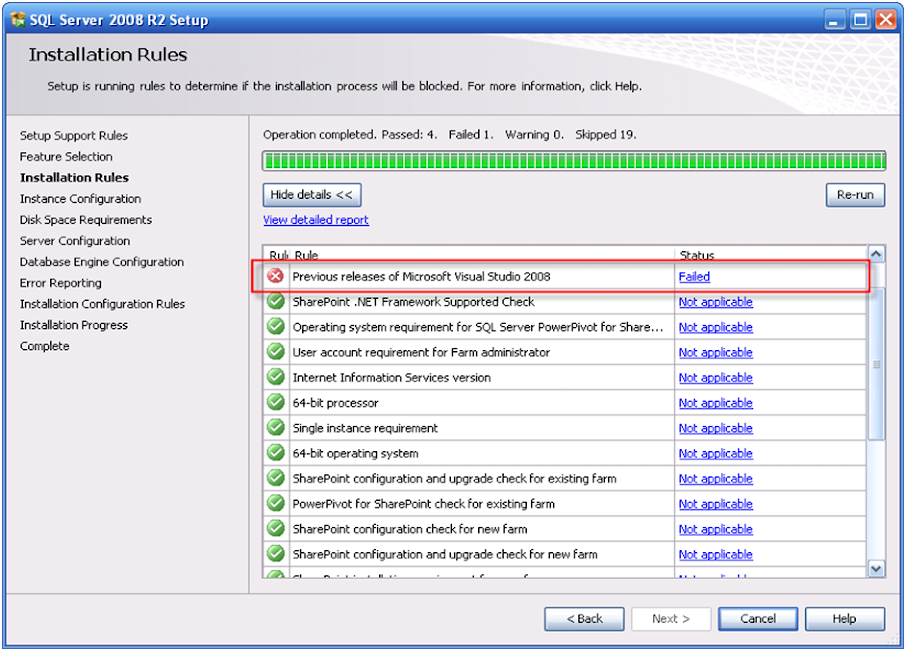
Fixing the “Previous release of Microsoft Visual Studio 2008” failed error when installing SQL Server R2

This error normally shows up if you try to install SQL Server R2 on a Windows machine. Unfornately, if you install Microsoft Visual Studio 2008 as the error implied, it still won’t work and it’s somewhat enough to make someone crazy or something.


This error could actually be fixed without installing Microsoft Visual Studio 2008. Follow these simple steps and I promise you, you will be able to install SQL Server R2 without fail. Trust me, I’ve tried it on ten (10) computers and it worked each and every time.

1. Download the necessary files in installing SQL Server 2008 R2. I won’t be covering how to install SQL Server R2 here, because there are several sites on the net that already teaches people how to do that. Just do a Google search and find a site that teaches how to install SQL Server 2008 R2 step by step.

2. Before you install SQL Server 2008 R2, uninstall any express edition applications such as Visual Basic Express Edition, Visual C# Express Edition and Visual Web Developer from your computer. Could be done by clicking Start>Control Panel>Add / Remove Programs> Select your Express edition file>Change/Remove >Uninstall>next>Finish.


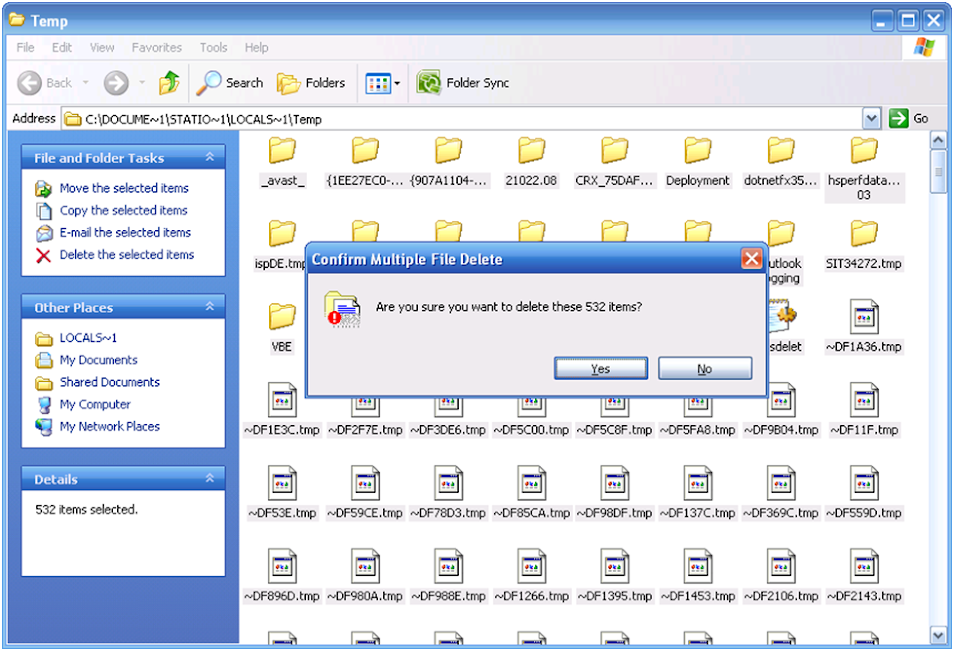
3. Clear the TEMP folder. Could be done by clicking the Start button>Run>Enter “%temp%” no quotes> then delete all the contents of the TEMP folder.


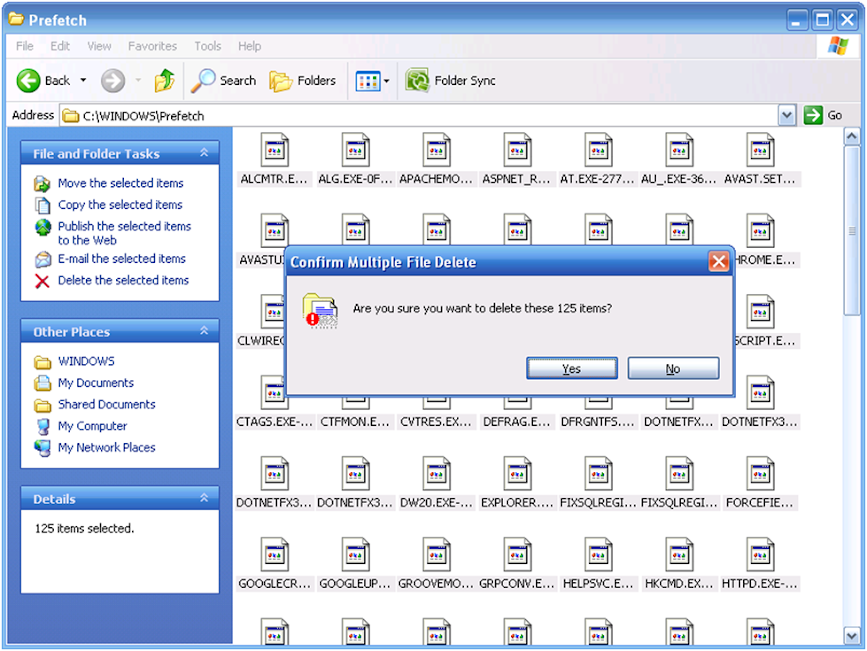
4. Clear the contents of the PREFETCH folder. Could be done by clicking Start>Run>Enter “Prefetch” no quotes>Ok.


5. After clearing the contents of the prefetch folder, restart your computer the Install SQL Server 2008 R2. That’s all!

Note: This isn’t really the official way of doing this. But it worked for me and I thought it’s worth a share. Just tryin to help :)

Animating 3d models in DarkGDK using dbAppendObject

Been watching 3d Animation tutorials lately but I’ve never really found a tutorial or detailed example for that matter that actually teaches how to animate 3d models in DarkGDK in a less unclear way. And so I’m sharing this example in hope that it will be used by some computer enthusiast out there like myself as a starting point in creating their very own 3d computer game.

I have used the Babe model in this example. Babe model is a Dark Matter Model that is accesible by default when you install DarkGDK and is located at C:\Program Files\The Game Creators\Dark GDK\Media\Dark Matter Models\People. The controls and actions of our model in this example are illustrated in the following table.

ControlsActions
W,A,S,DMove.x
TabDie.x
QImpact.x
No key PressedIdle.x


Enough said, here’s the code:


// Dark GDK - The Game Creators - www.thegamecreators.com
// the wizard has created a very simple project that uses Dark GDK
// it contains the basic code for a GDK application
// whenever using Dark GDK you must ensure you include the header file
#include "DarkGDK.h"
// the main entry point for the application is this function
void DarkGDK ( void )
{
// turn on sync rate and set maximum rate to 30 fps
 dbSyncOn();
 dbSyncRate(30);

 //loads our 3d model
 //we'll be borrowing the Babe DirectX Darkmatter model
 //it's included in the DarkGdk package located in
 //C:\Program Files\The Game Creators\Dark GDK\Media\Dark Matter Models\People\Babe
 //Just copy the contents of the Babe folder to your game project folder
 dbLoadObject("H-Babe-Idle.x",2);
 //Idle.x has 25 frames
 //to find how how many frames there is in a .x animation
 //Click Start>All Programs>The Game Creators>DarkGDK>Documentation>Information>Type "Frame" 
 //in the Textbox and the command used to determine the number of frames will reveal itself to you.
 //appends the number of frames of the Move.x animation to the loaded model
 //Move.x has 25 frames
 dbAppendObject("H-Babe-Move.x",2,26);
 //Attack.x has 24 frames
 //adds the number of frames of Attack.x to the loaded model
 dbAppendObject("H-Babe-Attack1.x",2,51);
 //Die.x has 50 frames
 //adds the number of frames of Die.x to the loaded model
 dbAppendObject("H-Babe-Die.x",2,76);
 //Impact.x has 10 frames
 //adds the number of frames of Impact.x to the loaded model
 dbAppendObject("H-Babe-Impact.x",2,126);
 //positions the object in the -y axis cause its a little bit top aligned by default when loaded
 dbPositionObject(2,0,-1,0);


 while (LoopGDK())
 {
 //display descriptive text
 dbSetTextSize(14);
 dbText(10,0,"WASD-Movement");
 dbText(10,10,"Spacebar-Attack.x");
 dbText(10,20,"Tab-Die.x");
 dbText(10,30,"Q-Impact.x");
 dbText(10,40,"No key pressed-Idle.x");


   //if the W or A or S or D or Spacebar or Tab or Q is pressed
   if ( dbKeyState(17) || dbKeyState(31) ||dbKeyState(32) || dbKeyState(30)||dbKeyState(57) || dbKeyState(15)|| dbKeyState(16))
   {
   //stop the presently looping animation
  dbStopObject(2);
   //retrieves the object present angle
   int ObjAngleY=dbObjectAngleY(2);
   //determines if the object is presently looping
   int looping=dbObjectLooping(2);
      //if the key pressed is W
   if(dbKeyState(17)) 
   { 
   //move the object on the -Z axis
     dbMoveObject(2,-0.05f);
   //is the object presently not playing?
   if (looping==0 )
   {
   //if yes then execute move.x
      //move Move.x has 25 frames
   //the number of frames from the starting frame to the ending frame must be at least 25 frames

    dbLoopObject ( 2,26, 51 );
   };
   }
   //if the key pressed is S
   if (dbKeyState(31))
   {
   //move the object on the Z axis
    dbMoveObject(2,0.05f);
   //is the object currently not playing?
   if (looping==0 )
   {
      //if yes then execute move.x
      //move directx animation has 25 frames
   //starting frame up to the end frame must be at least 25 frames

    dbLoopObject ( 2,26, 51 );

   };
   }
   //if the A key is pressed

   if (dbKeyState(30))
   {
  //rotate the object along the Y axis
  //for instance, if the objects current angle is 275-5
  //The object will then be rotated 270 degrees which is exactly south
  //from the user's POV
  //the dbWrapValue is to ensure that the object rotation will not exceed 360 degrees

    dbYRotateObject(2,dbWrapValue(ObjAngleY-5.0f));
   }

  //if the D key is pressed
   if (dbKeyState(32))
   {
 
     //rotate the object along the Y axis
  //for instance, if the objects current angle is 85+5
  //The object will then be rotated 90 degrees which is exactly north
  //from the user's POV
  //the dbWrapValue is to ensure that the object rotation will not exceed 360 degrees
    dbYRotateObject(2,dbWrapValue(ObjAngleY+5.0f));
   }
     //if the space key is pressed
   if(dbKeyState(57))
   {
  //is the object currently not playing?
   if (looping==0 )
   {
   //if yes then execute Attack.x
   //Attack.x has 24 frames so from the starting to ending frames
   //must be at least 24 frames
    dbLoopObject ( 2,51,77 );


   };
   }
   //if the Tab key is pressed
   if(dbKeyState(15))
   {
   //is the object currently not playing?
   if (looping==0 )
   {
   //if yes then execute Die.x
   //Die.x has 50 frames so from the starting to ending frames
   //must be at least 50 frames
    dbLoopObject ( 2,78,127 );


   };
   }
       //if the Q key is pressed
  
   if(dbKeyState(16))
   {
  //is the object currently not playing?
   if (looping==0 )
   {
  //if yes then execute Impact.x
     //Impact.x has 10 frames so from the starting to ending frames
     //must be at least 10 frames
    dbLoopObject ( 2,127,137 );


   };
   }


   }
  else
  //if no key is pressed
  //execute Idle.x
  //Idle.x has 25 frames so from the starting to the ending frames miust be at least 25 frames
  {
   dbLoopObject(2,1,25);
  }
// update the screen
  dbSync();
 } 
//return to windows
return;
}


Another way of animating models is by using the dbShowObject and dbHideObject commands. I'll post an example of that here when I have time. If you want more information on animating darkGDK models or creating games per se, you can visit DarkGDK's official site www.thegamecreators.com

Terminate an Executable Application in Visual Foxpro 9.0 at Run-time by Force

To terminate an executable application in Visual FoxPro 9.0 at run-time, use the RUN and Taskkill command. RUN is a Visual FoxPro command that allows you to execute DOS commands, Taskkill, on the other hand, is DOS command that allows you to terminate an exe applications and processes , similar to using the task manager. For details on using the taskkill command, follow these steps:

1. Click Start>Run>Type CMD> then press enter.

2. In the command prompt, type TASKKILL/?.

Using Run and Taskkill to terminate an executable application at run-time is essential especially if you have hidden the Visual FoxPro 9 IDE using the _SCREEN.VISIBLE command and your form just freezes when you click the Exit button, even though you have attached a THISFORM.RELEASE or whatever code to it. To see RUN and TASKKILL in action, follow these steps:


1. Click Start>All Programs>Microsoft Visual FoxPro 9.0.

2. Close the Task Pane Manager window.


3. Let’s make a form by typing CREA FORM in the command window and pressing enter.

Note: If the command window is hidden, just press CTRL + F2 to show it.

4. Add two buttons to your form, Refer to the following screenshot for control names and values:


5. Double-click the Terminate Ms-Word button, enter the following codes:

private anyvariable
anyvariable=MESSAGEBOX(“Are you sure you want to terminate Ms-Word?”,4+32)
if anyvariable=6
RUN "Taskkill /f /im winword.exe”
ENDIF


Your code window should now look like this:


6. Double-click the Terminate Visual FoxPro button, enter the following codes:
private anyvariable
anyvariable=MESSAGEBOX(“Are you sure you want to terminate Ms-Word?”,4+32)
if anyvariable=6
RUN "Taskkill /f /im VFP9.exe”
ENDIF
Your code window should now look like this:


7. Press CTRL + F3 to test your application.

8. Before Clicking the Terminate Ms-Word button, ensure that Ms-word is activated.

9. Try clicking the Terminate Visual FoxPro button and see what happens. And that’s all :)